

An IP address is the number the internet uses to find your device. What gets confusing is everything around it: IPv4 and IPv6, public and private, static and dynamic, CGNAT, VPNs, and the popular myth that someone can use your IP to look up your front door. This guide walks through it in plain English with numbers from May 2026 and no fear-mongering. iToolVerse runs the live IP lookup behind this article, so the explanations match exactly what the tool reports.
Check Your IP Address Instantly
If you came here just to see your IP, do that first. The What Is My IP tool shows your public IPv4, your IPv6 address (if your network has one), your ISP, your ASN, and the approximate city your IP geolocates to. Nothing is stored, and the same values are exactly what any website you visit can read from your request.
Once you have the numbers in front of you, the rest of this guide explains what each one means.
See your IP right now
What Is My IP
Shows your public IPv4, IPv6, ISP, ASN, and approximate geolocation - no sign-up, nothing stored.
What Is an IP Address?
An IP address is a unique number assigned to a network interface so other computers can route packets to it. Think of it like a postal address for a device on a network. Every packet your device sends carries one, and the destination puts its own IP on the reply.
Addresses are not handed out at random. IANA, the top-level allocator, gives blocks to five Regional Internet Registries (ARIN, RIPE NCC, APNIC, LACNIC, AFRINIC). The RIRs allocate smaller blocks to ISPs, and your ISP assigns one to your router or phone when it connects.
You can also have more than one IP at once. A typical laptop on Wi-Fi today has at least three: a private IPv4 on the LAN, a public IPv4 the router shares for outbound traffic, and one or more IPv6 addresses. That is normal.
Public vs Private IP
Private IP addresses are reserved ranges that only exist inside your local network. RFC 1918 carves out three of them: 10.0.0.0/8, 172.16.0.0/12, and 192.168.0.0/16. Your laptop almost certainly has an address in one of those right now, usually starting with 192.168.
Your router is the boundary. On the inside it speaks the private addresses; on the outside it has one public IP from your ISP, and it uses Network Address Translation (NAT) to multiplex every device through that single public address. When a website looks at the source IP of an incoming request, it sees the router's public IP, not your laptop's 192.168.1.42.
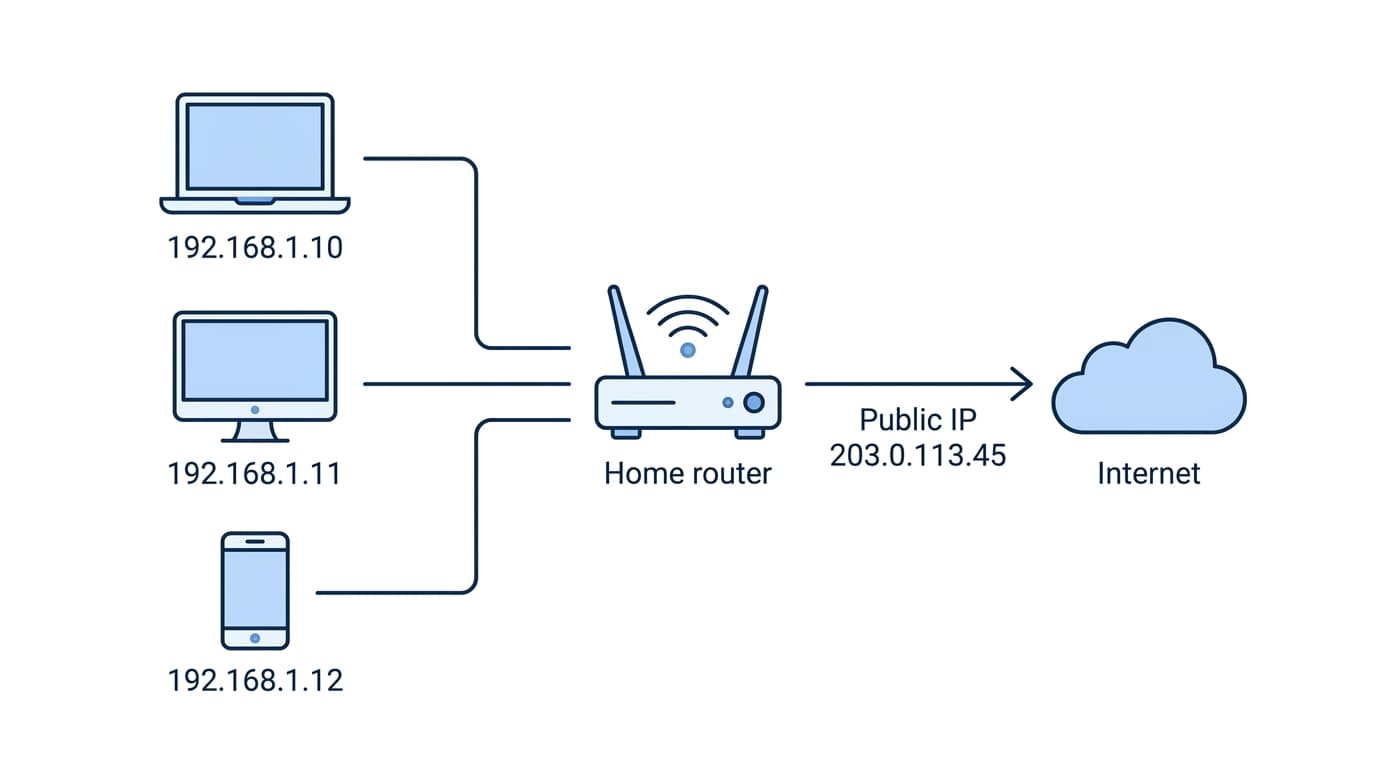
Curious what the public side of your router looks like to the rest of the internet? Check it with our What Is My IP tool.
IPv4 vs IPv6
IPv4 is the original. It uses 32-bit addresses written as four decimals separated by dots, like 203.0.113.45. That gives roughly 4.3 billion total addresses, which sounded limitless in 1981 and ran out years ago. Every RIR's free pool is effectively empty; new IPv4 is only available on the secondary transfer market, where prices in May 2026 sit around $18 to $28 per address for large /16 blocks and $35 to $58 per address for smaller /24 blocks.
IPv6 is the long-term answer. It uses 128-bit addresses written as eight groups of four hex digits, like 2001:0db8:85a3::8a2e:370:7334. That gives about 3.4 × 1038 addresses, which is enough to assign every grain of sand on Earth its own block. IPv6 also drops broadcast traffic, fixes the header at 40 bytes, and lets every device keep a unique public address instead of hiding behind NAT.
Adoption is no longer a niche topic. On 28 March 2026, Google's measurement of IPv6-capable users crossed 50.1 percent for the first time, and APNIC Labs (which weights by user population) puts the global figure near 42 percent. Country leaders are far higher: France is around 86 percent, with India and Germany in the 68 to 70 percent range. Most US and EU residential ISPs are dual-stack, meaning you get both an IPv4 and an IPv6 address on the same connection.
Want to confirm whether your network has IPv6 enabled? Our What Is My IP tool shows both IPv4 and IPv6 side by side.
CGNAT: Why Your Mobile IP Looks Weird
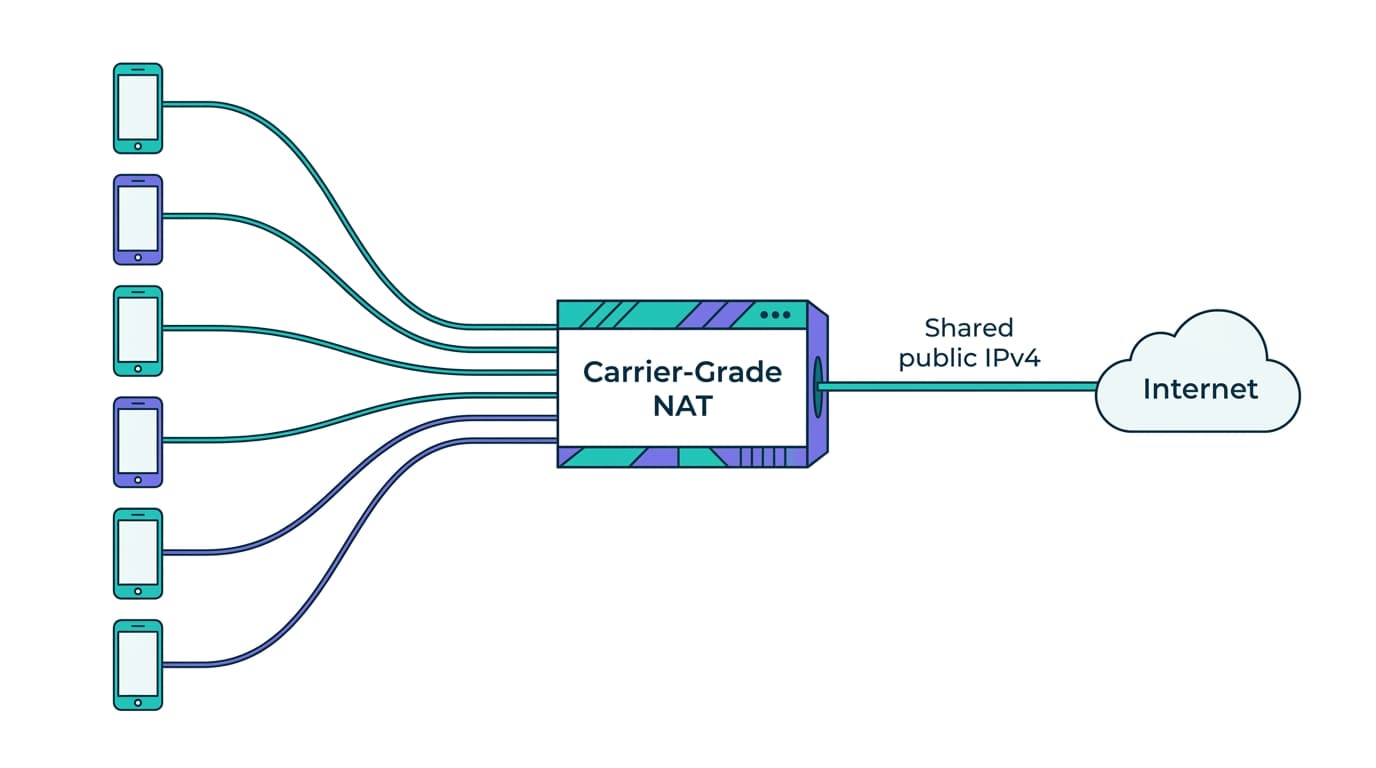
If you check your IP on home Wi-Fi and then on mobile data, the mobile one often looks different in subtle ways. Two phones on the same carrier may share an identical public IPv4. Port forwarding from a mobile hotspot never seems to work. The reason is Carrier-Grade NAT (CGNAT), and it is now the default on most mobile networks and many fixed-line ISPs in Asia and Africa.
CGNAT does the same trick as your home router, just one level up: the carrier puts thousands of subscribers behind a single public IPv4 address using a shared range (100.64.0.0/10, defined by RFC 6598). It is the only realistic way for carriers to keep selling connections without buying expensive IPv4 blocks on the transfer market.
The trade-off is real. Cloudflare's late-2025 measurement identified over 200,000 IPs as CGNAT and found that CGNAT addresses get rate-limited or challenged roughly three times more often than non-CGNAT addresses, even when the underlying bot scores are similar. If you suddenly hit a CAPTCHA or “too many requests” page on your phone but not on your laptop, your carrier's CGNAT pool is probably the reason.
How Websites See Your IP
When you make a request, the server sees the source IP on the TCP connection and writes it to its access log. If the request passes through a CDN or load balancer, the original IP usually appears in an X-Forwarded-For header. From the IP alone, the server can usually infer:
- Approximate city. Usually correct to the metro area, often off by 10 to 100 km, sometimes wrong by country if you are on a corporate VPN or satellite link.
- ISP and ASN. The autonomous system number tells the server which network operates the IP (Comcast, Jio, AWS, DigitalOcean, and so on).
- Connection type. Residential, mobile, datacenter, or known VPN/proxy, based on the ASN and published lists.
These are the values our What Is My IP tool reads from your request. To look up details on a different IP, use the related IP Lookup tool.
Why Your IP Changes (Static vs Dynamic)
Most home IPv4 addresses are dynamic. Your ISP hands out an address via DHCP with a lease of a few hours to a few days. When the lease expires, the router reboots, or the modem reconnects, you usually get a different public IP. Business accounts often pay extra for a static IP that never changes.
IPv6 changes for a different reason. Under RFC 8981, modern operating systems (Windows 10+, macOS 10.7+, iOS, Android, most Linux distributions) generate temporary IPv6 addresses with a randomized interface ID and rotate them roughly once a day (the default preferred lifetime is 86,400 seconds). Your device keeps several IPv6 addresses at once: a stable one for inbound connections and a fresh temporary one for outbound traffic, swapped daily so a remote server cannot follow you around forever. That is why your IPv6 may look completely different in the morning.
Is It Safe to Share Your IP?
Casual exposure of your IP is low risk. Every website you visit already gets it. Sharing it in chat, a support ticket, or a forum post does not give the recipient your name, address, or browsing history. IP geolocation is city-level at best, and even that is approximate.
The honest risks are narrow:
- Targeted DDoS against a streamer or gamer whose IP gets posted publicly. The attack floods the connection, not the device, and ends when the IP rotates.
- Scanning of intentionally exposed services. If you have port-forwarded a camera, NAS, or home server to the public internet, a tool like Shodan will index the open port. The risk is the service, not the IP.
- Correlation with information you already published. An IP plus a username plus a social profile narrows the picture, but the IP is the smallest piece.
What an IP does not do: it does not reveal your street address, real name, phone number, or browser history. ISPs hold the subscriber-to-IP mapping and only release it under court order. The “we traced your IP” line in TV crime shows is shorthand for a multi-week legal process, not something a random person can do.
How VPNs and Proxies Affect Your IP
A VPN replaces the public IP a destination sees with the IP of the VPN exit server. Connect to a London exit and websites see a London datacenter IP. That is the entire mechanism.
What a VPN does not change: your browser fingerprint, your cookies, your logged-in accounts, your DNS queries if the client is misconfigured, or the fact that your bank still recognizes you when you log in. Tor adds a multi-hop anonymity layer with much higher latency, and its exit nodes are widely published, so many sites block them. Residential proxies route traffic through real consumer IPs and are often flagged by anti-fraud systems for unusual ASN patterns.
Verify your VPN is working
What Is My IP
Check your public IPv4 and IPv6 before and after connecting to see exactly what destinations see - and catch IPv6 leaks instantly.
Find Your Router (Local Gateway) IP, Step by Step
Your router's LAN-side IP is what you type into a browser to reach its admin page. Here is how to find it on every common platform.
Windows 11
- Press Win + R, type
cmd, press Enter. - Run
ipconfig. - The Default Gatewayline under your active adapter is the router's IP.
macOS
- Open System Settings then Network.
- Click the active connection and click Details.
- Open the TCP/IP tab. The Router field shows the gateway IP.
Linux
Run ip route | grep default in a terminal. The address after default via is the router.
iPhone / iPad
- Open Settings then Wi-Fi.
- Tap the i next to the connected network.
- Scroll to Router.
Android
- Open Settings then Network and internet then Internet.
- Tap your Wi-Fi network, then the gear icon.
- Expand Advanced or Network details. The Gateway field is the router IP.
Networking Terms, in One Sentence Each
- NAT (Network Address Translation): lets many private IPs share one public IP through a router.
- DHCP: the protocol that hands out IP addresses automatically to devices that join a network.
- DNS: translates
example.cominto the IP address your computer actually connects to. - ASN (Autonomous System Number): identifies the network operator that runs a given block of IPs.
- MAC address: the hardware identifier of a network interface, used on the local segment only.
- Subnet: a contiguous range of IPs that share a common prefix and are routed together.
- Gateway: the device (usually your router) that forwards traffic between your LAN and the wider internet.
- Port: a number on top of an IP that identifies a specific service or connection, like 443 for HTTPS.